







 Download a font for a foreign language
What is a virtual keyboard, do I need one?
How to install a font (Windows)
How to view a font
To actually view all the characters in a font, you can use Windows font viewer: click on Start, Run, then type charmap.
However, if you need more information, we recommend you to download a font viewer, like "Arjan Mel's Font Viewer", which you can download from our site. Click on the picture below to enlarge the screenshot.
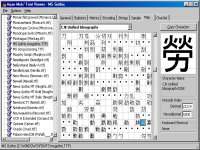
- If, during the installation, a window pops up and says "Unable to Post Registration", please click "No", then "OK", to complete the installation.
We believe this error is happening because the website where the registration is supposed to be posted no longer exists.
See also:
Windows XP free font viewer - basic program to browse through and preview any installed fonts.
Links to free font viewersMacintosh users: how to convert a font
The fonts we provide are for PC only. Mac users can use a font converter to convert all the foreign fonts to Mac from PC or vice versa. There are two files to download, one is Windows-Mac, the other Mac-Windows.
Mac OS X users can install fonts for PC without any transformation.
 TT_FontConvert.sit (195 kb)
TTConverter_1.3.sit (28 kb)
TT_FontConvert.sit (195 kb)
TTConverter_1.3.sit (28 kb)
Many thanks to Erik Schaug for sending us this converter.
Links to other resources
If you're looking for some more fonts, please check out this website:
Fonts in Cyberspace